
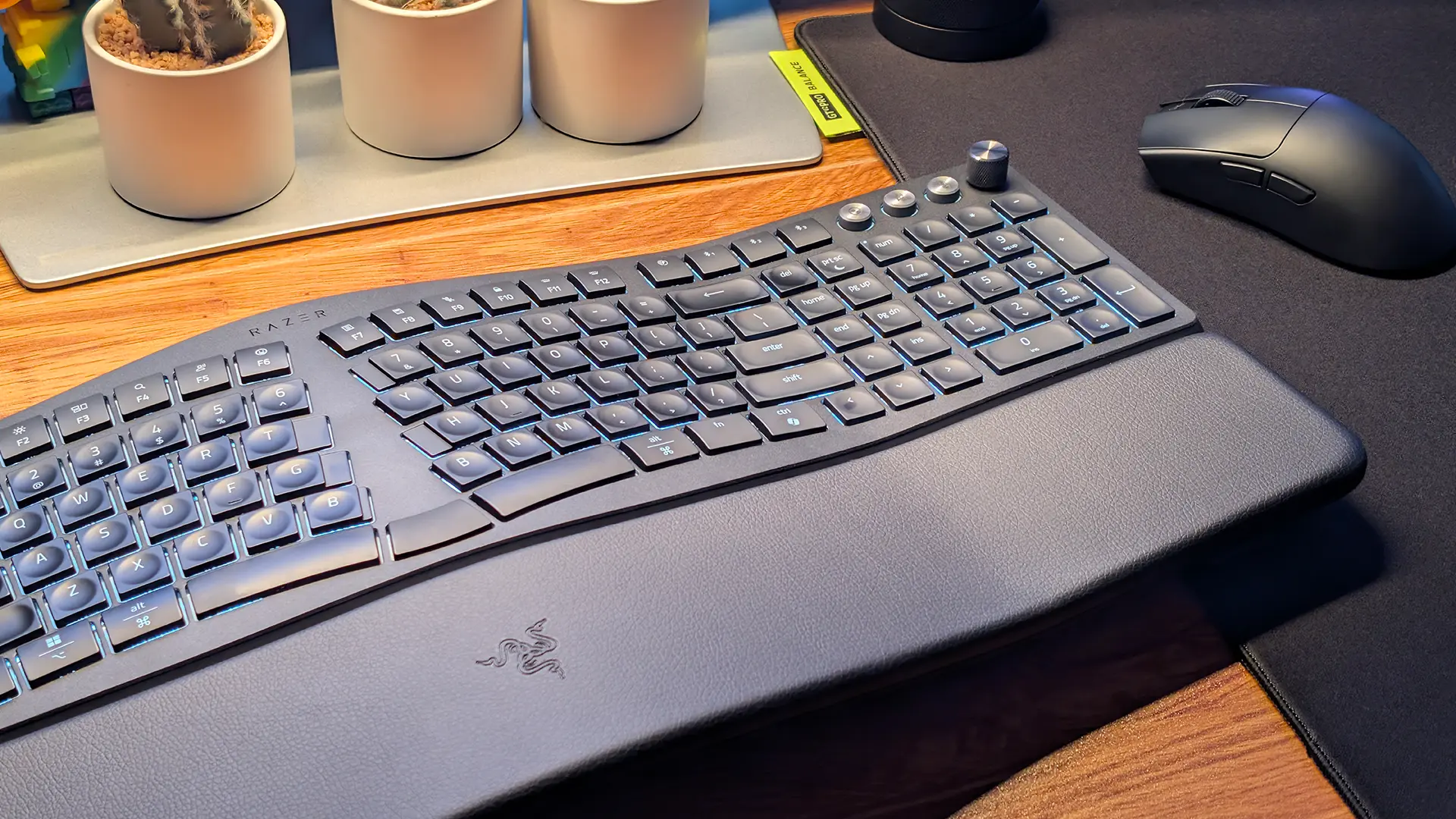
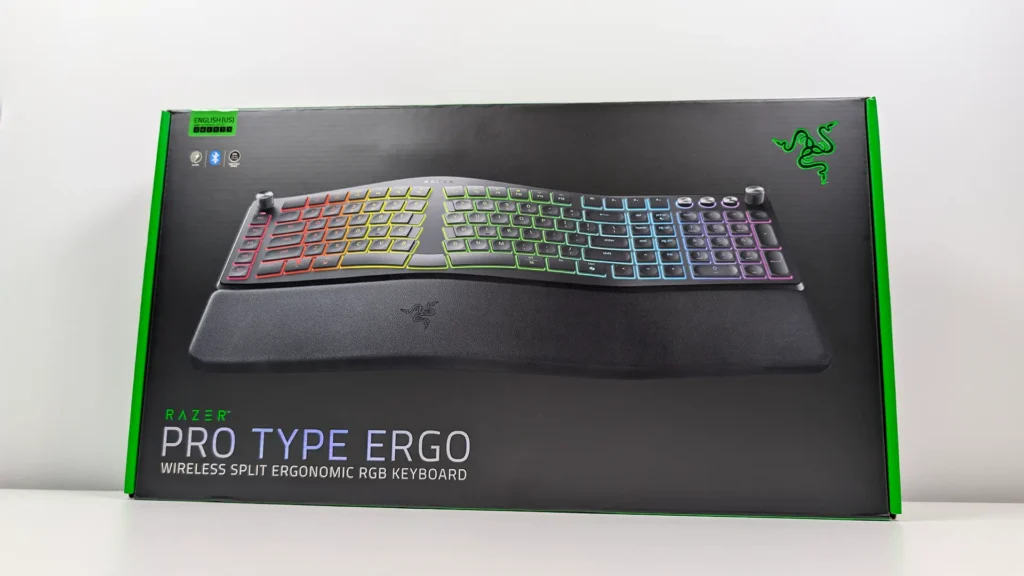
While gaming is its bread and butter, Razer has spent a while now dabbling in the productivity market, and more recently started introducing “ergonomic” takes on its range. This time around, it’s the Razer Pro Type Ergo, a 100% format keyboard that takes a stab at a market that hasn’t really been touched by a gaming brand, but that’s brought us some iconic products like the Microsoft Natural range – now spearheaded by Incase.
The Pro Type Ergo gets its name from a curved, split design that aims to maximise comfort and wrist health by placing your hands in a more natural position during use. I was surprised at how pronounced the hump in the centre of the alphabet section actually is, and how large and heavy it is as a result. With a full-sized layout and no ability to remove the sizable plush wrist rest, this is a keyboard built for a nice, spacious desk at home and far from something you’d chuck in a bag for the office. But the benefits at least feel present, it’s a superbly comfy typing experience – and reasonably adjustable.
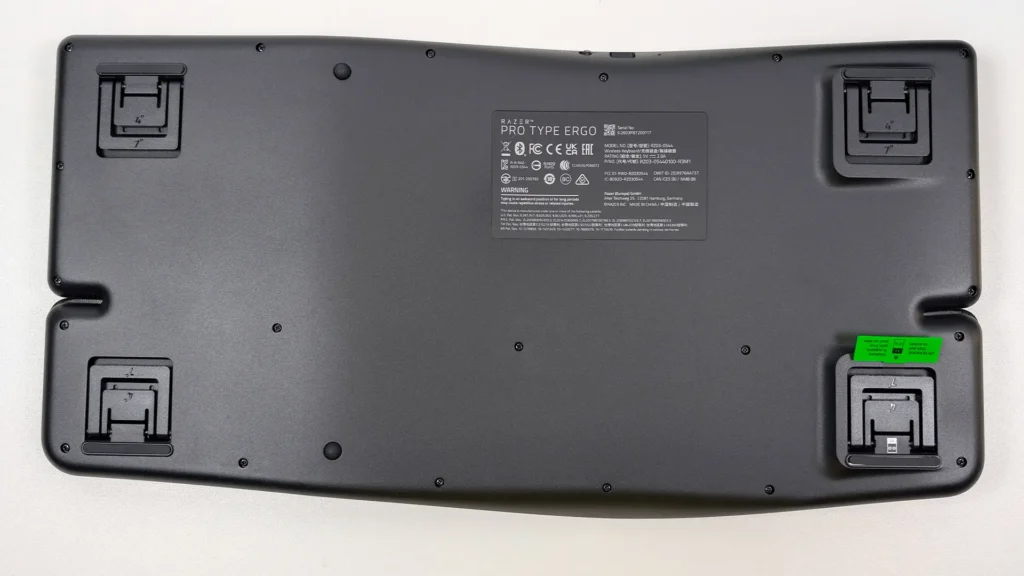
Like many keyboards, there are two legs at the top underside that you can flip in or out at two angles for your preferred tilt, but there are also two more at the front that allow it to tilt away from the user. My initial reaction to this was… why? But then I tried it, and it’s revolutionised my work time. It’s made me realise how often I’ve been uncomfortably resting my wrists on the front of my desk, pressing into the hard edge, but now there’s no risk of that – and I’ve been able to lower my adjustable desk to a perfect level while easing a lot of the strain from my arms. I will always make sure to point out that there’s rarely a provable benefit to any “ergonomic” gear a peripheral maker wants to sell you, because everyone is different, but in this instance I’m personally blown away by the difference it’s made to hours of desk work.
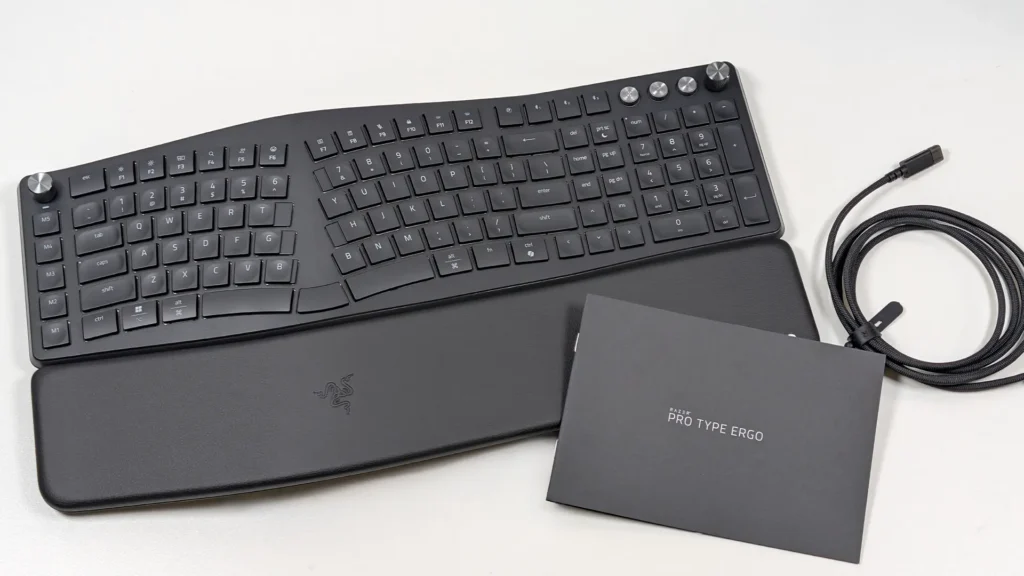
While the overall layout is reminiscent of something like the classic Microsoft Natural or the Logitech Ergo, there are a few thoughtful inclusions from Razer on this new effort that I’ve genuinely come to appreciate while using it, and adjusting to the arrangement of the alphabet keys to bring my touch typing back up to typical pace. The addition of a second “B” key and a third, central segment of space par in the bottom middle has helped immensely in rescuing me from misfires (by default it’s actually an extra backspace), as have the slightly elongated T, Y, G and 7 keys that help manage a bit of the dead space in the central, raised point. The most-used of the slim, chiclet-style keys also have a circular indent in the centre that allow your fingertips to rest naturally on them, help with navigation and also very slightly reduce travel even further.
Of course, being a Razer number, there are a couple more gaming-adjacent features on this than your typical “ergonomic” keyboard, much like what we saw on the Pro Click V2 Vertical which I also use and love. Here, you’ll find per-zone RGB lighting (if that’s your thing), and a column of five additional function keys along the left side. I’m a big fan of the placement of these extra keys, as they don’t get in the way of regular use but it’s quite easy and natural to slide your left hand down the slope and find them. For serious gamers, the lack of mechanical switches might not make this totally viable in a dedicated setup, but if you’re willing to let that go in the name of comfort, the Pro Type Ergo will at least look like it fits in.
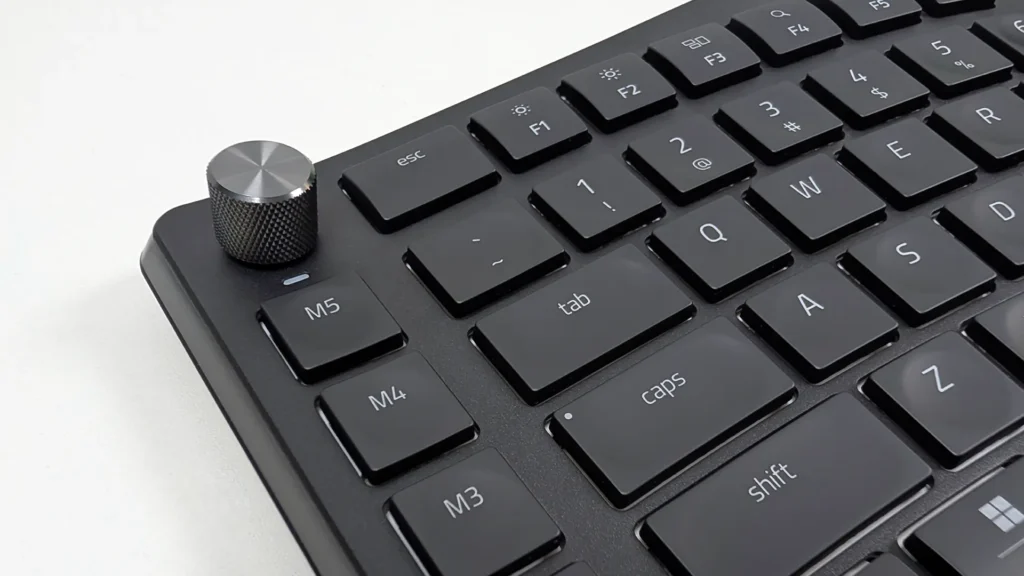
Among my absolute favourite features on this keyboard though, are the two media control knobs situation on each of the topmost corners. The one on the right does what you’d expect by default, controlling volume with a turn and muting all audio with a press. But the left one functions as a “Command Dial” out of the box that, when you turn it, pulls up Windows’ native app switcher so you can quickly roll between all of your open windows. It’s not a huge step beyond a simple ALT+TAB, but as someone who frequently has about a dozen different applications and windows open at any one time, it’s become a handy little time saver, and just feels nicer to operate in this way.
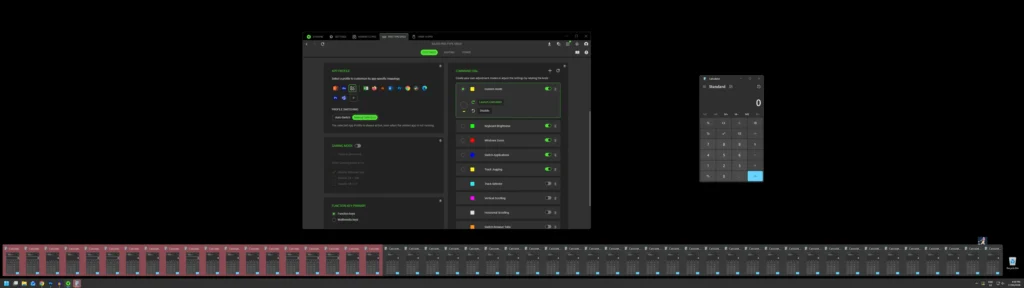
If that’s not for you, it can also be configured to do things like control the zoom level in apps, scrub through tracks in a music player, scroll vertically or horizontally and more. If you’re feeling creative, you can even set up your own custom actions so that turning the knob left or write performs mouse/keyboard functions, types text, plays recorded macros or opens applications. I had a good laugh when I realised I could set it so that turning the Command Dial left opened the calculator, and subsequently performing one full turn launched no less than 50 instances of it at once. Is that useful? Not at all. But I appreciate that I can do it.
Razer has also once again included its dedicated “AI” function key that essentially just launches into a window where users can perform some basic genAI tasks using their choice of compatible engines like ChatGPT. And as usual, the very first thing I did out of the box was disable that and remap the key to something actually useful to my writing – an en dash (I am aware of the irony of using en dashes in defiance of genAI writing but I refuse to change my style). It’s telling that searching up “how to disable Razer’s AI Prompt Master” gets you a result from Razer’s own website, presumably because it’s one of the most F in their FAQs.
This is all controlled through Razer’s Synapse software, which I’ve grown to consider one of the better and least intrusive of the major gaming peripheral makers’ proprietary apps. It does work best when you ignore most of the frontend stuff and just jump straight into customising your gear, but this side of it is mercifully simple and intuitive. There’s not a whole heap to do in Synapse for the Pro Type Ergo, aside from remapping the keys, customisable buttons and dials, and the 19-zone RGB lighting, though the setup for auto-switching keyboard profile based on specific apps should prove handy for productivity-focused folks. My little brain can’t handle memorising keyboard layouts for individual apps, so I’ve turn off the auto-switching, but it’s nice to have it there.
Connectivity is similarly flexible, offering multi-device pairing for up to five devices including the USB-C port, Bluetooth and Razer HyperSpeed Wireless 2.4GHz adapter. They Pro Type Ergo is rated for up to three months battery life on a wireless connection, though that’ll obviously vary if you’re using the RGB lighting and not using the idle auto-off settings. I can’t reasonably test three months of battery and still get a review out in good time, but so far the one I’m using seems to sip power quite moderately with no danger of reaching for a charging cable yet.
At USD $189.99 / AUD $299.99 the Pro Type Ergo commands a significant premium over even Logitech’s most expensive ergonomic keyboard, but there are enough added benefits here that I believe it has the right amount to offer the right person, to justify that spend. If you’re serious about gaming, I’d probably stick to mechanical, but if you’re spending just as much time filling out spreadsheets and typing emails (or writing 1300 words about a keyboard), this could be the one for you.
Review unit supplied by manufacturer.


Born into the world of video games through SEGA, and in particular Sonic the Hedgehog, Kieron’s gaming tastes now consist of the latest, shiny AAA thing, an indie darling or two, and an embarrassing number of hours of Balatro.